 (925) 413-3870


We’ll help you transition to Timeline, coming (like it or not) on March 30
Target audience: Everyone.
 Facebook made the stunning announcement this week that, as of March 30, all nonprofits or businesses will no longer have a Welcome Page (if you had one). Instead, everyone who visits your page will see the new Timeline page with the big cover photo.
Everything you know about using and administrating your Facebook Page will change at the end of this month. So this article is devoted to sorting it all out for you.
Highlights and features of the new page layout
You can check out a preview of your page here to see all of the upcoming changes to pages. You can choose to push your page live before March 30 so that all users see your new page with the Timeline format.
The changes include:
• Cover photo – Pages include the ability to upload a cover photo that is similar to what many profiles have. The dimensions for the image should be 850 by 315 pixels.
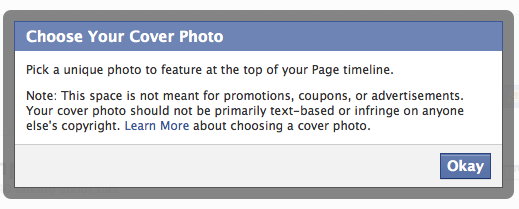
When choosing a cover image, Facebook tells you (see below) that you are not supposed to use the cover for promotions, which is strange because Facebook Pages are a marketing tool for businesses.
• New profile pic dimensions – Your page avatar (profile photo) will now be 180 pixels square.
• Tabs with photos – Facebook page tabs will now be across the top, just below your cover image. You can have a maximum of 12 tabs, and they can be rearranged so that the four most important ones will be visible to people who visit your Page.
• Pinning – You can also “pin” (hello Pinterest!) posts to the top of your page, giving you more control over what’s displayed above the fold.
When you hover over an update and click on the pencil icon, you can pin it to the top of your page. You can also hide or delete it the update entirely.
Page messages – Pages will also include a messaging feature, which gives visitors the ability to send you private messages; this is optional and can be turned off.
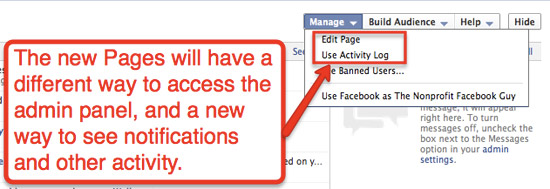
New access to the admin area – The back end of your Facebook page has the same administration area. The only thing that will change is how you access the admin panel (see below).
How to convert your page to the new Timeline
At the top you’ll see a step-by-step guide on how to convert your Facebook Page over to the new Timeline format. I’ll walk you through the following items:
- Switch your page over to preview mode
- Add a cover image to your site
- Change your main avatar picture
- Rearrange tabs
- Change photos for custom tabs
- Deactivate (or not) messaging
- Cleaning up your Timeline
What do you think of Facebook’s change to all pages? Like it? Hate it? Let me know in the comments. John Haydon delivers social web strategy solutions for “the quick, the smart, and the slightly manic.” Curious? Then visit the John Haydon blog, follow him on Twitter or leave a comment.

 This work is licensed under a Creative Commons Attribution-NonCommercial 3.0 Unported.




Thanks for this informative piece. I hope you or some readers can help me with the following.
I dread the March 30th cut-over to Timeline and I hope someone can put me in touch with tech support at Facebook so a bug can be fixed. Right now, whenever I use Safari or Google to access Facebook (without using the Facebook app), my iPad crashes every time I go to a friend’s or a group’s Facebook page that has already been changed to Timeline.
I have tried to ask for help from Facebook at its several tech support web pages and Facebook pages, but I have not been successful in reaching anyone who comes forward to help.
I’ll, essentially, be unable to use Facebook once everyone and every group are on Timeline. Because of Timeline, Facebook now crashes for me each and every time within a few seconds – especially if I pinch to enlarge a page (which I need to do due to vision reasons).
Thanks for any help or suggestions you can provide!
I’ll assume you don’t have a laptop or desktop computer if you assume I’m not an iPad expert. ;-) Seriously, if you haven’t already, try using Facebook’s mobile browser (the iPad should redirect you to this browser). It’s https://m.facebook.com/
Also, you might want to try another browser on the iPad. The store has a bunch of awesome browsers that you can search for my rating (I use dolphin and love it!).
I wish I could be more helpful… :-(
The only problem using the mobile app is that you can’t share posts. And I experience the same problem when I open Facebook in Safari. Anyone have a fix for this?
A timeline is a way of displaying a list of events in chronological order, sometimes described as a project artifact. It is typically a graphic design showing a long bar labeled with dates alongside itself and (usually) events labeled on points where they would have happened.
I’ve had timeline for a week or two now and although I think at first glance it looks quite attractive, I find it really confusing the use. I have no idea what some of the bits mean (what is the Favourite tab for and what am I supposed to put in it?). I also can’t work out how to move certain things, or not have them showing. I don’t like the two columns in the display things because it makes reading a page confusing. All in all, I would say I don’t like the new timeline, but that might simply be because I can’t work out how to use it properly.